

iOS app
Download on the App Store.
Hardcharger™ runs the server directly on an iPhone or iPad: the same hardcharger-server,
Hardcharger Engine 2.0 and its built-in extensions, built into the app. It includes the web SQL
workspace and the hardcharger console, and connects to Hardcharger servers anywhere
else. Local queries do not require an account or a separate server.

Install and open
Section titled “Install and open”The app needs iOS 18 or later and runs on iPhone and iPad. Install it from the App Store; the install page links it too. Developers can build it from the iOS source instructions.
The app has six screens: Web UI, Console, Server, Logs, Servers and Settings. On iPhone they are in a tab bar. On iPad they are in a sidebar, with keyboard shortcuts (⌘1–⌘6 for the screens, ⌘I to import, ⌘⇧L for sharing, ⌘R to reload), multiple windows and Stage Manager.
On first launch the app creates the administrator’s password and the server’s token-signing key and keeps them in the Keychain, on this device only. The web UI opens already signed in.
Run queries and work with files
Section titled “Run queries and work with files”In Web UI or Console, try:
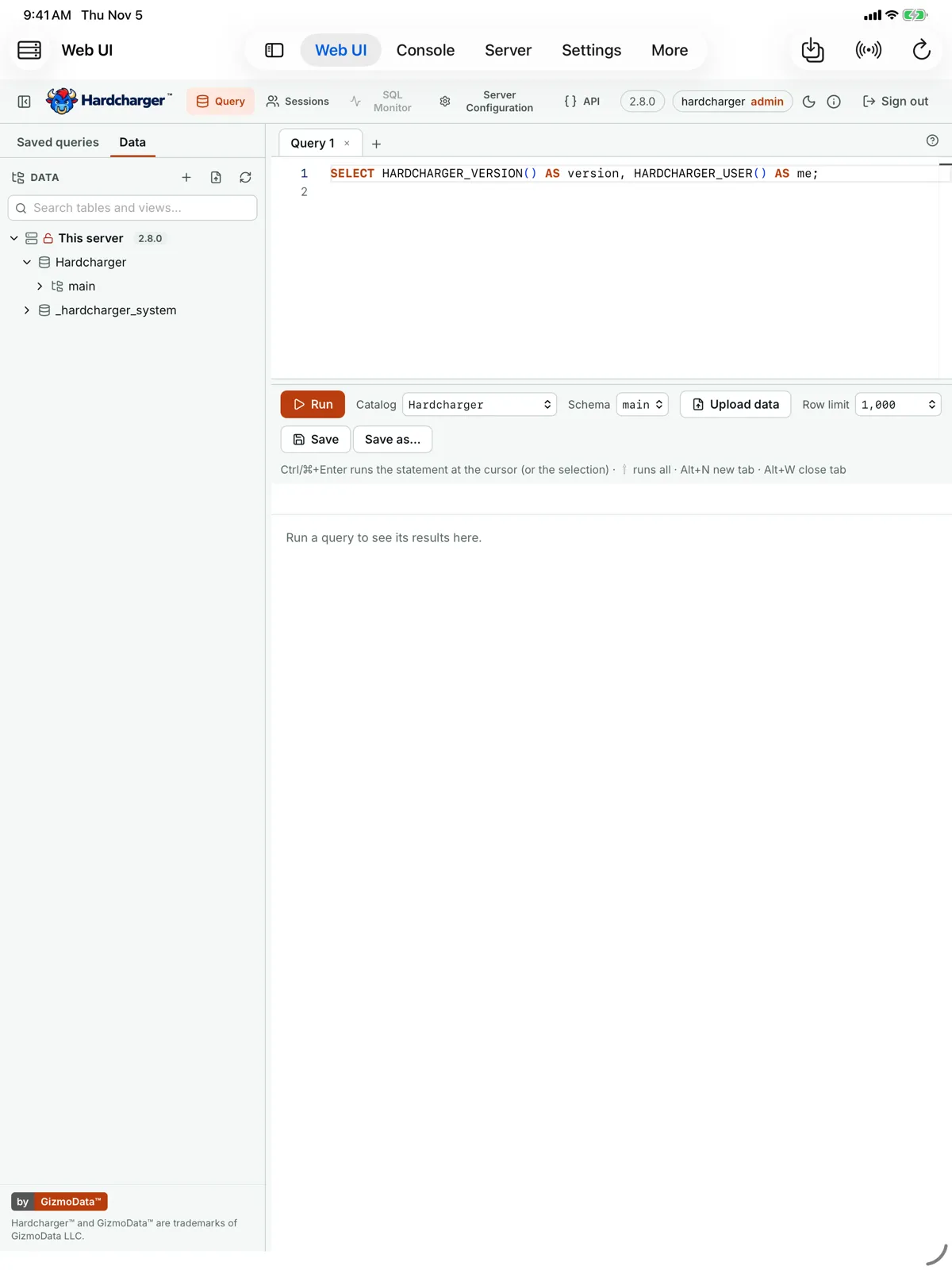
SELECT 'Hello from iPhone' AS message, 42 AS answer;Web UI is the server’s own web UI: the editor, results grid, schema browser, sessions, API page and uploads. The web UI guide describes it.
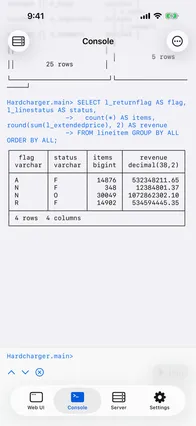
Console is the hardcharger command-line client inside the app, with the same statement
endings, dot commands (.help, .tables, .schema, .mode, .timer, .maxrows and the
rest) and output formatting. Return runs a statement once it ends with ;; ↑/↓ recall
history. On iPad, ⌘↩ runs, Esc clears the input, ⌘. cancels and ⌘K clears the output.
.shell is not available, because iOS does not let an app start other programs.
Import CSV, TSV, JSON and Parquet files from the Files app, the share sheet, or by dropping
them on the app on iPad. The database is Hardcharger.duckdb in the app’s documents, with
Imports and Exports folders beside it, all visible in the Files app under
On My iPhone › Hardcharger (or On My iPad).
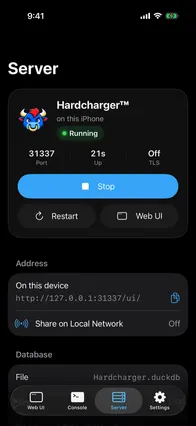
Server starts, stops and restarts the server and shows its address, uptime, versions, database size and memory. Logs shows the server’s log, with level marks or plain.
Connect to another server
Section titled “Connect to another server”Add a server under Servers. Sign in with a user name and password, or with the server’s single sign-on through browser sign-in. Saved servers and their credentials are kept in the Keychain. Their web UI and console work like the device’s own.
A server with a self-signed certificate is trusted only by its fingerprint, and only after you approve it. See TLS for server configuration.
Share the local server
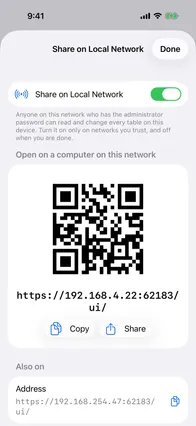
Section titled “Share the local server”Share on Local Network is off by default. Turn it on and the server listens on the network with TLS, using a certificate the device makes for itself. The app shows the address as a QR code, with the certificate’s fingerprint, so a computer on the same Wi-Fi can open the web UI and sign in with the administrator’s password. A second QR code adds the server to another iPhone or iPad’s Hardcharger app.
iOS suspends apps that leave the screen. The app asks for the usual extra time so running statements finish, and when you return it restarts a server that no longer answers. Keep the app on screen while another device uses its server; Settings › Share on Local Network can keep the screen on while sharing.
Included extensions
Section titled “Included extensions”DuckDB’s extensions are built into the app. iOS runs only code the app was signed with, so the app cannot download or load other extensions, and changing extension settings does not change that. See DuckDB extensions for the platform differences.

Built by GizmoData™