

Desktop app
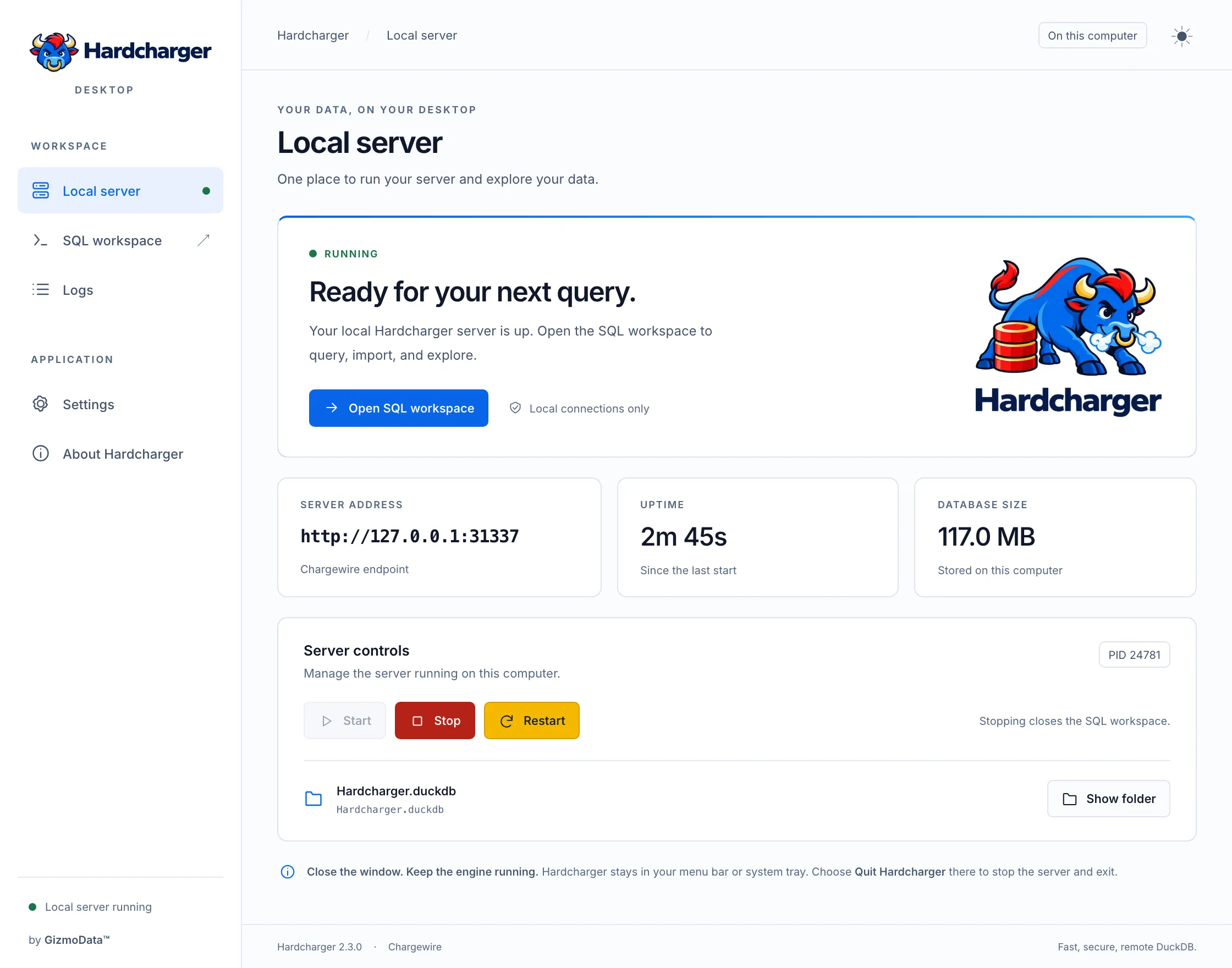
Available in v2.1.0+. Hardcharger™ for macOS 15+ on Apple silicon and Windows combines a native server dashboard with the server’s SQL workspace. The desktop app supplements the existing command-line packages. Linux desktop packaging is planned; Linux server and CLI builds remain available.
Runtime requirements
Section titled “Runtime requirements”- macOS: version 15 or later on Apple silicon; WebKit and Keychain are supplied by the OS.
- Windows: x64 or Arm64 with Microsoft Edge WebView2. The MSI installs WebView2 if missing; that download needs an internet connection. Passwords use Windows Credential Manager.
The server, CLI, DuckDB and web UI are bundled. No separate Node.js, Python, Docker or database installation is required. Optional DuckDB extensions download when first needed and are cached for later use.
Choose a download
Section titled “Choose a download”Download the package for your computer from the matching GitHub release.
| Package | Use it for |
|---|---|
Hardcharger-desktop-macos-arm64.dmg |
macOS desktop app on Apple silicon; drag Hardcharger to Applications. Release builds are signed and notarized. |
Hardcharger-desktop-windows-amd64.msi or -arm64.msi |
Windows desktop app; choose x64 or Arm64. Release installers are signed. |
hardcharger-<platform>-<arch>.tar.gz / .zip |
Server and CLI for terminals, automation and service deployment. |
Hardcharger-windows-amd64.msi or -arm64.msi |
Windows installer for the command-line tools, added to PATH. |
Feature-branch preview packages can be unsigned or ad hoc signed. They are review builds; release signing and notarization are checked by the release workflow. App stores are follow-up work.
Install with Homebrew on macOS
Section titled “Install with Homebrew on macOS”On macOS 15+ with Apple silicon:
brew install --cask gizmodata/tap/hardcharger-desktopOpen Hardcharger from Applications. The cask installs the signed, notarized desktop
release. Update it with brew update and brew upgrade --cask hardcharger-desktop.
To install only the command-line server and CLI, use
brew install gizmodata/tap/hardcharger.
Start and open the workspace
Section titled “Start and open the workspace”- Open Hardcharger. By default it starts its own server on
127.0.0.1:31337. - Choose Open SQL workspace to open the server’s embedded web UI, signed in by the app.
- Use Start, Stop and Restart on the dashboard or in the menu bar/system tray. Stop and Restart ask for confirmation before closing SQL windows, interrupting active work and disconnecting clients. Cancel or Escape leaves the server running.
- Close the dashboard to keep the server running. Choose Quit Hardcharger to shut down the server and app. Quitting any other way (the Dock, a logout, a shutdown) stops the server too, and if the app ever goes away without stopping it (a crash, a forced quit), the server notices and stops on its own. Launch at login is optional, under Settings.
If a server from a previous run of the app is still running when the app opens (one left by an older version, for example), the Local server page says so, with its process id and port, and offers Stop it. Until it is stopped, Start refuses with that message rather than “port already in use”.
The controller starts the same hardcharger-server executable as the command-line package,
as a child process. The SQL workspace connects to it over Chargewire. The app bundles the
hardcharger command-line client too. It owns a separate database and preferences directory;
it does not automatically adopt an existing command-line database or server. A port conflict
is reported instead of attaching to another server.
The desktop app runs as the signed-in user. Menu-bar/tray residency does not keep a sleeping computer awake or make the app a system service. Use the server packages with your service manager when the server must operate independently of a desktop login.
Closing the SQL workspace ends that window’s sessions before closing. An open transaction requires confirmation; Cancel or Escape keeps the workspace and its sessions. Reopening starts fresh sessions and restores saved editor text. Closing the workspace also closes its query-detail windows and ends their observer sessions. Cancelling the transaction-close prompt keeps those windows open too. Closing the desktop dashboard still leaves the server running in the menu bar or system tray. On macOS, the Window menu lists open workspaces and query inspectors, including windows behind the dashboard.
Connecting other programs on this computer (v2.14.0+)
Section titled “Connecting other programs on this computer (v2.14.0+)”In Only this computer mode, other programs on the same computer can connect to the local
server too. The app generates the local administrator password once, keeps it in the macOS
Keychain or the Windows Credential Manager and reuses it at every start (before 2.14 it changed at
every start and was never shown; upgrading users get one on their first start). The dashboard
shows the user name and the masked password with Reveal and Copy password, and
Connect from this computer has Web UI, Python / ADBC, JDBC, CLI and JavaScript examples for
127.0.0.1 over plain HTTP that read the credentials from HARDCHARGER_USER and
HARDCHARGER_PASSWORD. The password stays out of Export YAML, the logs, the command line and
the examples. Generate new password replaces it and, after the Restart confirmation,
restarts a running server; the old password stops working.
A network administrator password needs at least 12 characters, as the server’s password policy asks of every new password: Settings refuses a shorter one before saving. A network setup saved earlier with a shorter password keeps working, and the dashboard and Settings ask you to choose a longer one.
Text size (v2.14.0+)
Section titled “Text size (v2.14.0+)”Every window (the dashboard, the SQL workspace and query details) zooms with View → Bigger, Smaller and Actual Size, or on macOS with Safari’s shortcuts: ⌘+ (⌘= or ⌘⇧= on a US keyboard), ⌘−, ⌘0 and the numeric keypad’s + and −, also with the cursor in the SQL editor. Settings → Text size does the same. The size is remembered and applied to each window as it opens.
The workspace without the local server (v2.7.0+)
Section titled “The workspace without the local server (v2.7.0+)”Open SQL workspace works while the local server is stopped too. The app then runs the
bundled client’s hardcharger ui on a loopback port of its own (plain HTTP on this computer
only; the relay still speaks TLS to the servers you add), opens the workspace on it with the
Remote servers you saved in Settings, and stops it when the workspace closes. Such a
workspace lists no local server and no admin pages: it is for the other servers. Start the
local server and choose Open SQL workspace again to get the workspace on it, with the
same saved servers listed beneath it.
The dashboard says which workspace the button opens; the Window menu and the tray’s Open SQL Workspace open the same one.
Settings and logs
Section titled “Settings and logs”Settings exposes options from the bundled server, grouped by category. Search setting names, enable Override to change a default, and use dropdowns for booleans and fixed choices. Save settings before starting; server options take effect at its next start. Unsaved or invalid network settings block startup and show what needs attention.
Import YAML previews changes before applying them. Export YAML omits passwords and other secrets. Desktop-managed networking and credentials are set through the app, and desktop preferences such as launch at login are not server YAML options. Sensitive values are stored in macOS Keychain or Windows Credential Manager. macOS may ask permission to read the app’s saved credential, especially after an ad hoc preview rebuild.
Logs → Live tail follows new output every two seconds. Turn it off to pause, or use Refresh for a single update. Scrolling up keeps your place while you read earlier lines.
The SQL workspace’s Server Configuration tab edits supported runtime settings. Those changes are separate from saved desktop settings and do not survive a server restart.
Remote servers (v2.7.0+)
Section titled “Remote servers (v2.7.0+)”Settings › Remote servers keeps the other Hardcharger servers the SQL workspace lists, with
these fields of the workspace’s Add a Hardcharger server dialog: a display name, Host
and Port (31337 by default; until you type one, a GizmoData Cloud host such as
mycluster.us-east-1.aws.gizmodata.com sets it to 443, v2.8.0+), Use TLS, and Trust this server’s certificate for a private or
self-signed one (paste its SHA-256 fingerprint, or leave it empty to see the certificate the
first time the workspace connects). The list is saved with the settings and handed to the
workspace when it opens, where each server shows with its lock
(the web UI guide describes the dialog, the locks and the
relay). A remote whose own /ui is off works too: the workspace reaches it through the relay,
over Chargewire alone.
You sign in to each server in the workspace. Its Remember password box (only the desktop app offers it) keeps the password in your operating system’s keychain (macOS Keychain, Windows Credential Manager, or the Secret Service on Linux) under the saved connection, and fills it in when you pick the connection again. Unchecking the box, forgetting the connection in the dialog, or removing the server here removes the password from the keychain. The workspace window can reach only those keychain entries, through three commands the app grants it on its own address; it has no other access to your computer.
Allow connections from other computers
Section titled “Allow connections from other computers”- Stop the server and open Settings → Network access.
- Choose Allow network connections. Select the listen IP and enter the server DNS name/IP clients will use. Detected local addresses and the computer’s hostname help fill these fields; they do not create DNS records or change firewall rules.
- Keep TLS — encrypted selected. Supply certificate-chain and private-key PEM paths, or choose Generate certificate and key. Set the administrator user name and password.
- Choose Save settings, then start the server. The dashboard shows the SQL workspace and connection examples for other computers. Allow inbound TCP traffic on the selected port in your firewall if needed, and keep this computer awake.
Connect from another computer has tabs for Web UI, Python / ADBC, JDBC,
CLI and JavaScript. Each shows a text example with a clipboard button, populated
with the saved DNS name/IP and port. Client examples use hardcharger:// (JDBC uses
jdbc:hardcharger://); the Web UI tab uses the matching HTTP(S) URL. TLS is detected from
the server endpoint, so an HTTP server’s examples explicitly disable encryption.
Examples read the client’s credentials from HARDCHARGER_USER and
HARDCHARGER_PASSWORD; saved server passwords are never copied. For a private CA,
set HARDCHARGER_TLS_ROOTS to its public PEM certificate on the client, or use the
CLI’s --tls-roots option. Browser clients need their own CA trust setup.
A generated certificate covers the chosen name and current detected addresses and lasts
one year. The app shows the public CA certificate and its SHA-256 fingerprint. Share only
Hardcharger-local-CA.crt; keep server.key private. Clients can trust that CA or pass it
to the CLI with --tls-roots /path/to/Hardcharger-local-CA.crt.
Open SQL workspace asks for explicit approval if its generated CA is not trusted yet. On macOS it requests trust for the current user and server address; Windows opens the current-user certificate import wizard. Review the fingerprint before approving. Certificate verification stays enabled. Other client computers need their own trust setup. A changed address may require a new certificate and renewed trust.
Only this computer is the default. Invalid network settings never silently switch the server back to local-only mode. HTTP is an explicit unencrypted alternative for a private network; it sends credentials and SQL without encryption.
Monitor and configure the server
Section titled “Monitor and configure the server”The workspace includes the same administrator tabs as the server’s browser-based --web-ui:
- SQL Monitor shows active work, recent outcomes, timeouts, queue status and captured
profiles. Enable
enable_instrumentationin desktop Server options, save, and restart. - Server Configuration shows session and global values and allows supported runtime edits and resets, even without instrumentation.
Both require an unrestricted administrator. See the SQL Monitor guide for status meanings, profiles, session controls and runtime-setting scopes. For building and signing the app, see desktop/README.md.
About Hardcharger links to the documentation, product website and GizmoData.
Menu bar and tray
Section titled “Menu bar and tray”In v2.1.2+ the bull in the menu bar (macOS) or system tray (Windows) shows the server’s state: a green dot while it runs, a red one while it’s stopped. Its menu and the app’s Server menu offer only what applies: Start Server while the server is stopped; Stop Server, Restart Server and Open SQL Workspace while it runs.
Updates
Section titled “Updates”Available in v2.1.2+. Hardcharger Desktop checks for a newer release shortly after it opens and every six hours, and shows Update available in the header when there is one. Click it to read the release notes, then Download and restart (or Download and install while the server is stopped). The download runs while the server keeps working. If the server is running, the app asks before stopping it, as Stop does: the SQL workspace closes, active queries are interrupted and clients disconnect. It then installs the update, restarts, and starts the server again if Start server when Hardcharger opens is on. Skip this version hides that release’s badge; Later keeps it.
About Hardcharger shows the app’s own version, Check for updates, and two settings: Check for updates automatically (on by default) and Include release candidates (off). Updates are signed with GizmoData’s update key, and the app installs only a package whose signature matches it and names the version being installed. On Windows, installing asks for administrator approval, as the original installation did. An offline computer or a failed check never affects the server.
2.1.0 and 2.1.1 can’t update themselves: install 2.1.2 once from the
downloads, and later releases update in-app. 2.1.2 also gives the app
its final identifier, com.gizmodata.hardcharger.desktop: its first launch moves the data
folder from …desktop.preview (database, settings, certificates, logs), leaves a link at the
old name so paths in your settings keep working, and keeps your saved credentials.

Built by GizmoData™